Salesforce Sync Error: No such column 'CanUseRevenueSchedule' on object of type Product2
Last updated: July 25, 2026
Overview
When Salesbricks syncs a new product to Salesforce, it sends a CanUseRevenueSchedule field on the Salesforce Product2 object.
If Salesforce's Product Schedules feature is not enabled in your Salesforce org, Salesforce rejects the request with a `400 Bad Request` error and the message:
> No such column 'CanUseRevenueSchedule' on object of type Product2
This article explains how to enable Product Schedules in Salesforce, and then retry the sync in Salesbricks.
---
Who this affects
You will encounter this error when:
Your Salesbricks account has revenue schedule sync enabled with Salesforce, and
You create a new product (for example, a new usage or commit pricing model) without first enabling Product Schedules in your Salesforce org.
The sync failure will appear in your Salesbricks integration logs and the affected order will not be reflected in Salesforce until the issue is resolved.
---
Step 1: Enable Product Schedules in Salesforce
You must complete this step in Salesforce before retrying the sync in Salesbricks.
Log in to your Salesforce org as an administrator.
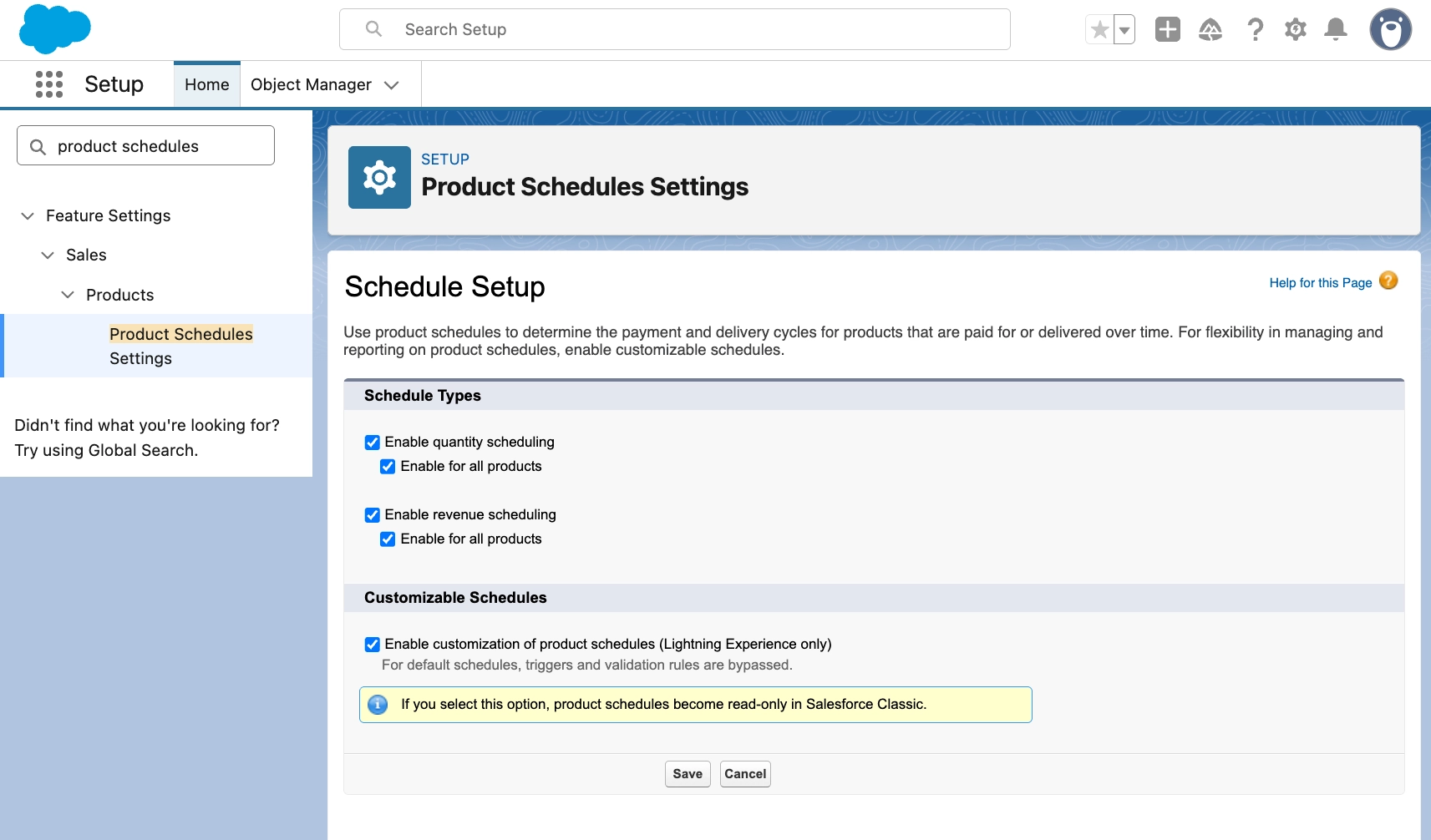
Click the gear icon in the top-right corner and select Setup.
In the left-hand Quick Find search box, type
Product Schedulesand select Product Schedules Settings under Feature Settings → Products.Check both of the following boxes:
Enable quantity scheduling
Enable revenue scheduling
Click Save.
> Note: After saving, the checkboxes may appear unchecked if you refresh the page. This is expected behavior in Salesforce — the settings have been saved successfully regardless.
---
Step 2: Retry the CRM sync in Salesbricks
Once Product Schedules are enabled in Salesforce, retry the sync from Salesbricks.
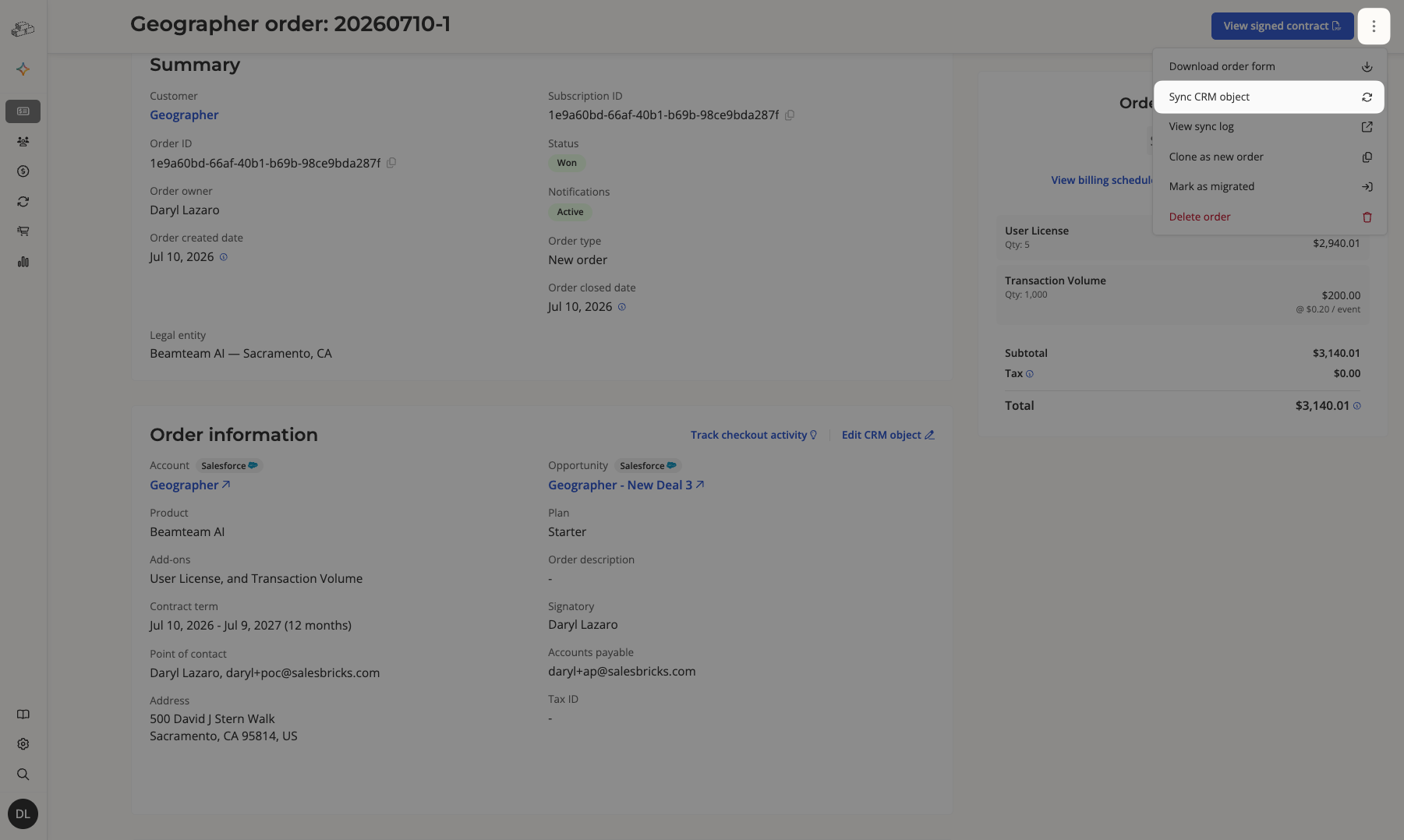
In Salesbricks, go to Orders and open the affected order.
In the order detail page, click the action menu (the ⋯ or actions icon) in the top-right corner of the page.
Click Sync CRM object.
Wait for the sync to complete. You will see one of the following toast notifications:
"Linked CRM objects updated and synced successfully" — the sync succeeded.
"Linked CRM objects updated but sync failed: [message]" — the sync did not complete; review the message and contact support if needed.
---
Step 3: Verify in the integration log (optional)
To confirm the sync succeeded or to investigate further failures:
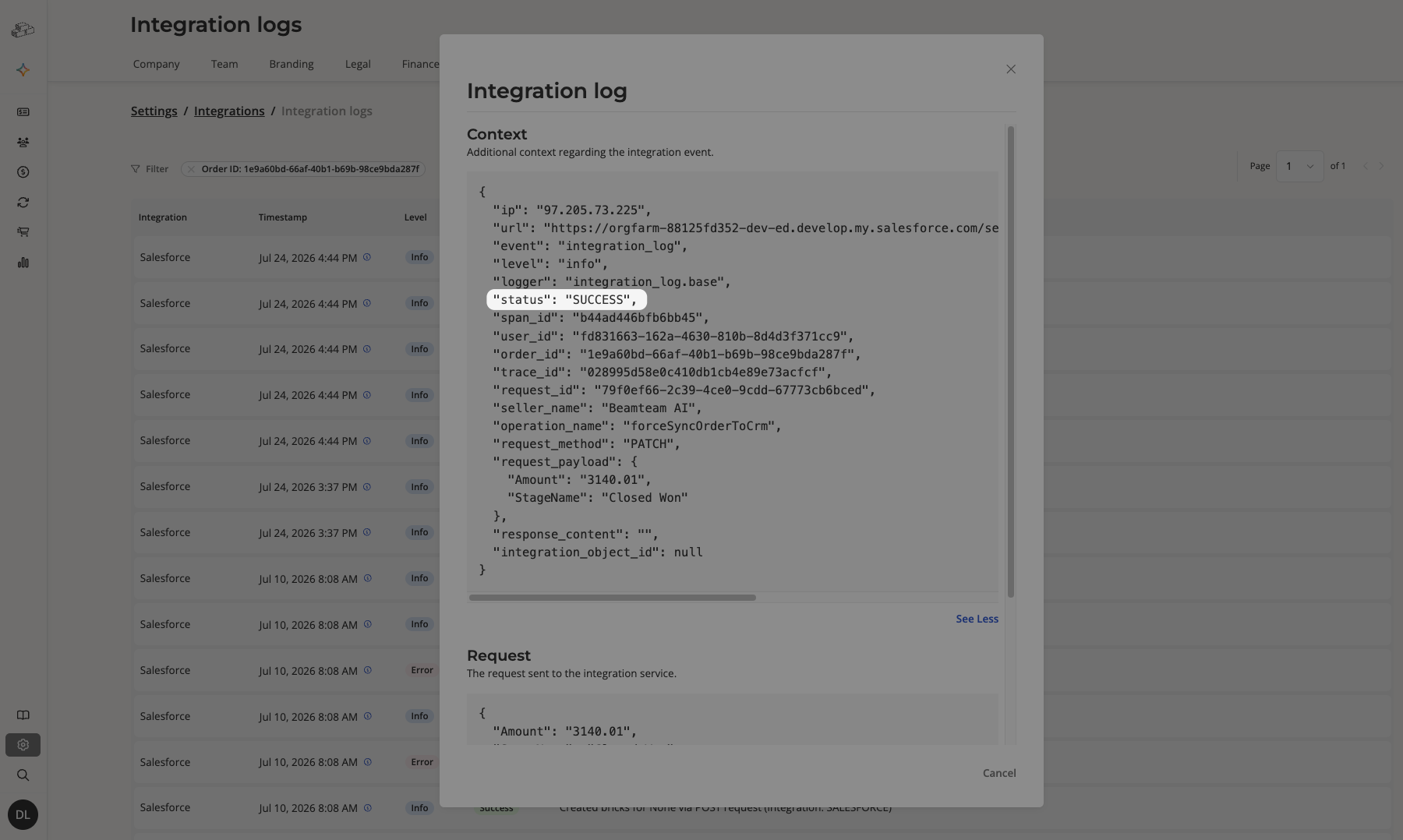
In Salesbricks, go to Settings → Integrations → Integration Logs (or navigate directly to
/admin/settings/integrations/logs).Filter by the relevant order ID to view all sync events for that order.
Confirm the most recent event shows a successful status.
---
Requirements
Requirement | Details |
|---|---|
Salesforce permission | Salesforce System Administrator profile (required to access Setup and modify Product Schedule Settings) |
Salesbricks permission | User must have order update access and an active CRM connection to use Sync CRM object |
Salesbricks plan | CRM integration (Salesforce) must be connected and enabled on your Salesbricks account |
---
Still seeing errors?
If the sync continues to fail after enabling Product Schedules, check the following:
Retry the update in Salesforce by navigating back to Setup → Feature Settings → Products → Product Schedules Settings.
Contact Salesbricks Support and share the order ID and the error message from the integration log.