How can I change what chart of account Salesbricks revenue is recorded into in Quickbooks?
Last updated: July 10, 2024
Within Salesbricks Plans and Bricks, there is a field called Internal SKU code. This code can be used to input the corresponding Product Code.
Here are the steps to set this up.
In Quickbooks Online, navigate to Products and Services.
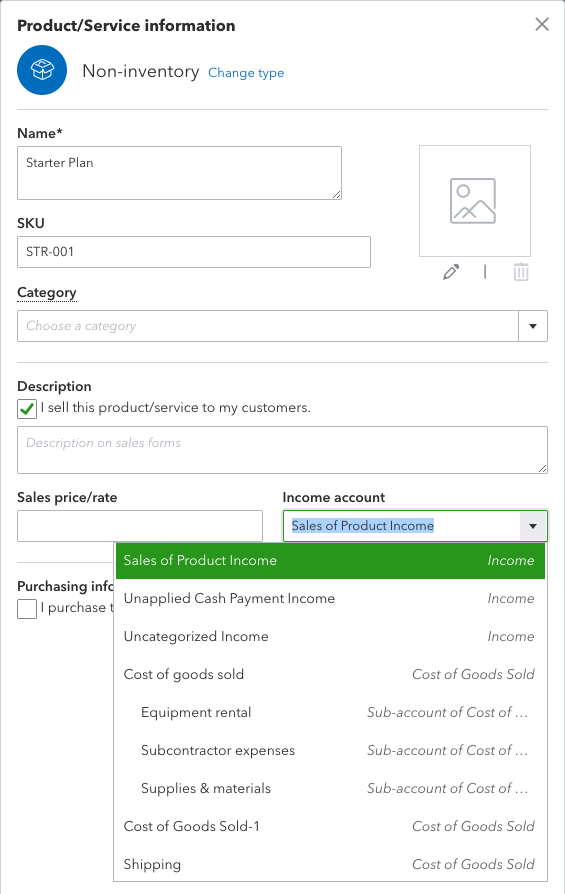
If you do not already have products in Quickbooks, create new products, giving each a name and SKU, and select the desired income account.
Make note of the SKU as this code will be input into Salesbricks.
Log into Salesbricks and navigate to your plans (Product tab > Click on the desired product).
Click the edit icon, and scroll down until you see a field called Internal SKU code (optional).
Input the Quickbooks SKU code in this field that corresponds with this plan.

Navigate to the Bricks tab and click edit next to the desired brick.
Input the Quickbooks SKU code into the field labeled Internal SKU code (optional) that corresponds with this brick.
After this process is complete, Salesbricks will map the Plan and Brick(s) from Salesbricks to your Products in Quickbooks for future invoices that are generated. The income will then flow into the associated revenue account assigned to that product.