Exclude Order Form PDF from Invoice Emails
Last updated: September 10, 2026
Overview
By default, Salesbricks attaches both the invoice PDF and the executed order form PDF to buyer-facing invoice emails. Some buyers' accounts-payable (AP) automation systems (such as Ramp or Bill.com) ingest the first PDF attachment as the invoice, then error on the second attachment - the order form - which can prevent the real invoice from being processed.
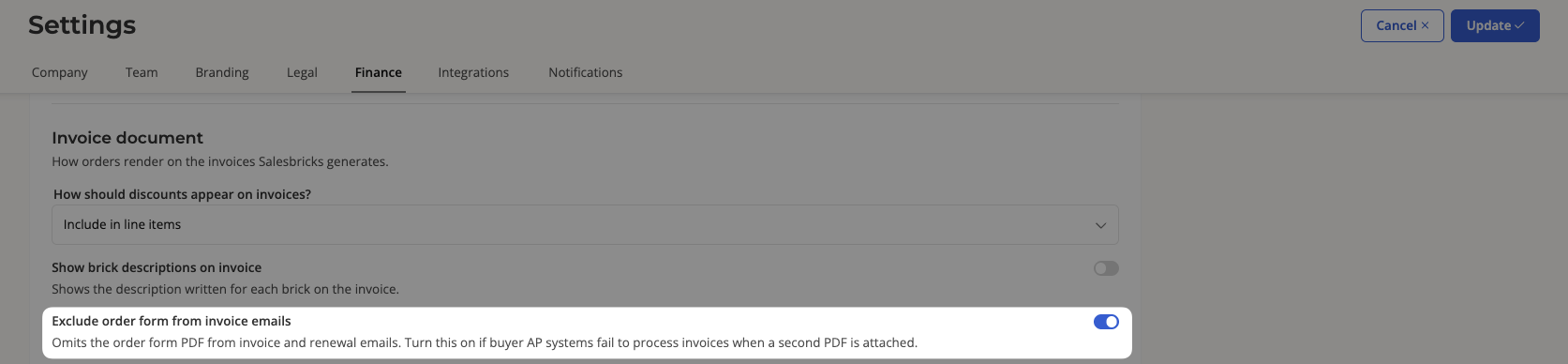
The "Exclude order form from invoice emails" setting lets you send invoice and renewal emails with the invoice PDF only, dropping the executed order form attachment entirely.
How It Works
When this setting is enabled:
Invoice emails sent to buyers include only the invoice PDF.
The executed order form is no longer attached to those emails.
Order confirmation emails and seller notification emails are not affected; they continue to include the order form as before.
The setting is off by default, so your existing email behavior is unchanged until you opt in.
How to Enable
In your Salesbricks admin, navigate to Settings → Finance.
Scroll to the Invoice document section under Billing.
Find the Exclude order form from invoice emails toggle (located near the Show brick descriptions on invoice toggle).
Click the toggle to enable it.
Click Save to apply the change.
Requirements
You must have admin access to your Salesbricks seller account to modify Finance settings.
This setting is available to all sellers.
Notes
The setting takes effect immediately for all new invoice and renewal emails sent after saving.
Previously sent emails are not affected.
The executed order form remains accessible to customers at any time through the Salesbricks customer portal.