How do I send an invoice?
Last updated: August 28, 2024
Option 1: Send from within Salesbricks
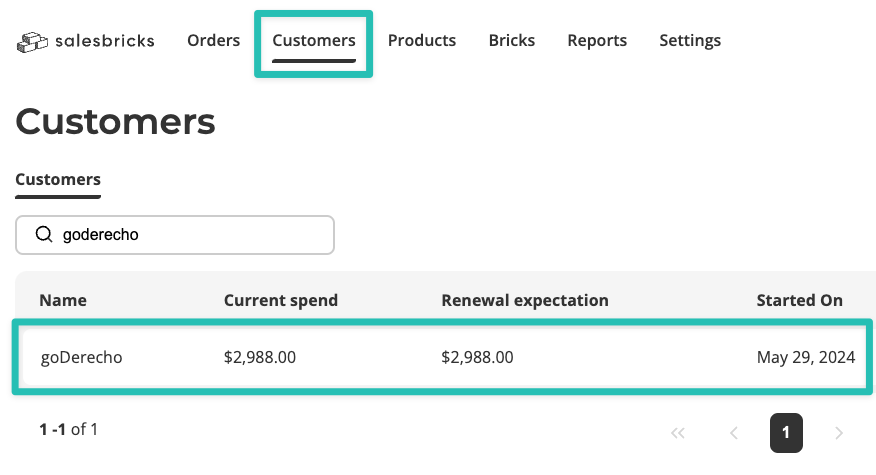
Go to the Customers page to find your customer.
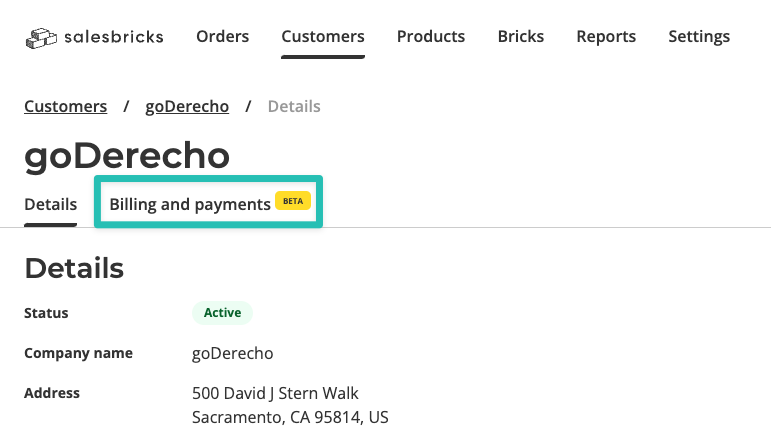
Click the Billing and Payments tab.
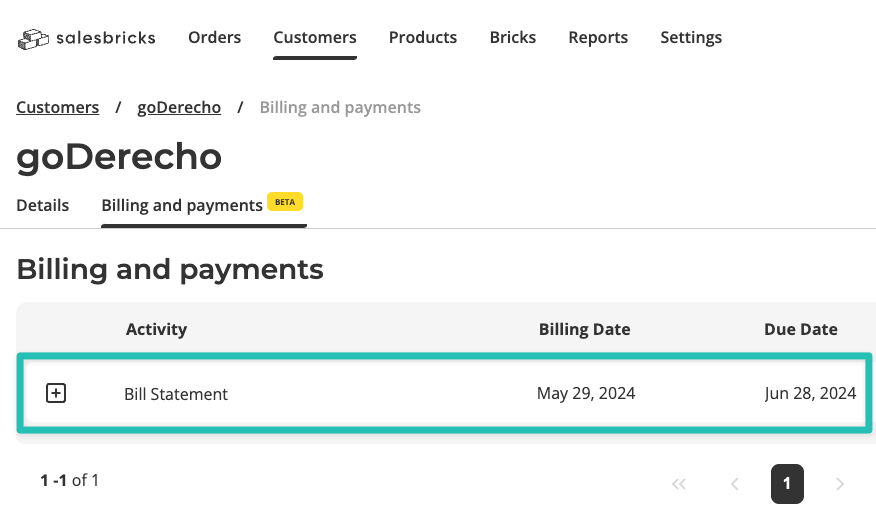
Select the invoice you wish to send.
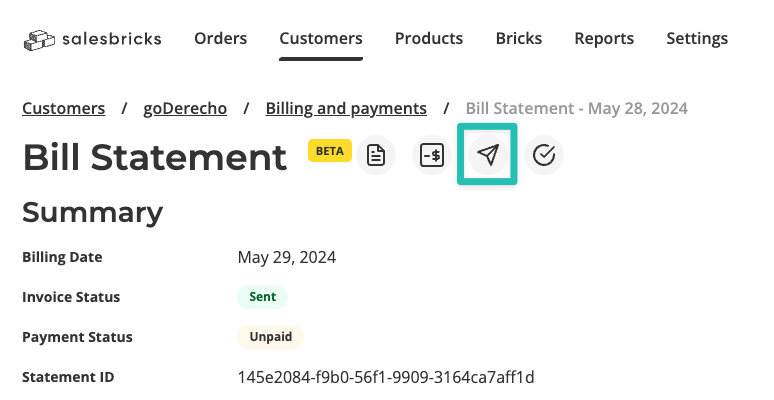
Click the arrow icon.
In the Send to field, enter the email addresses you wish to send the invoice to.
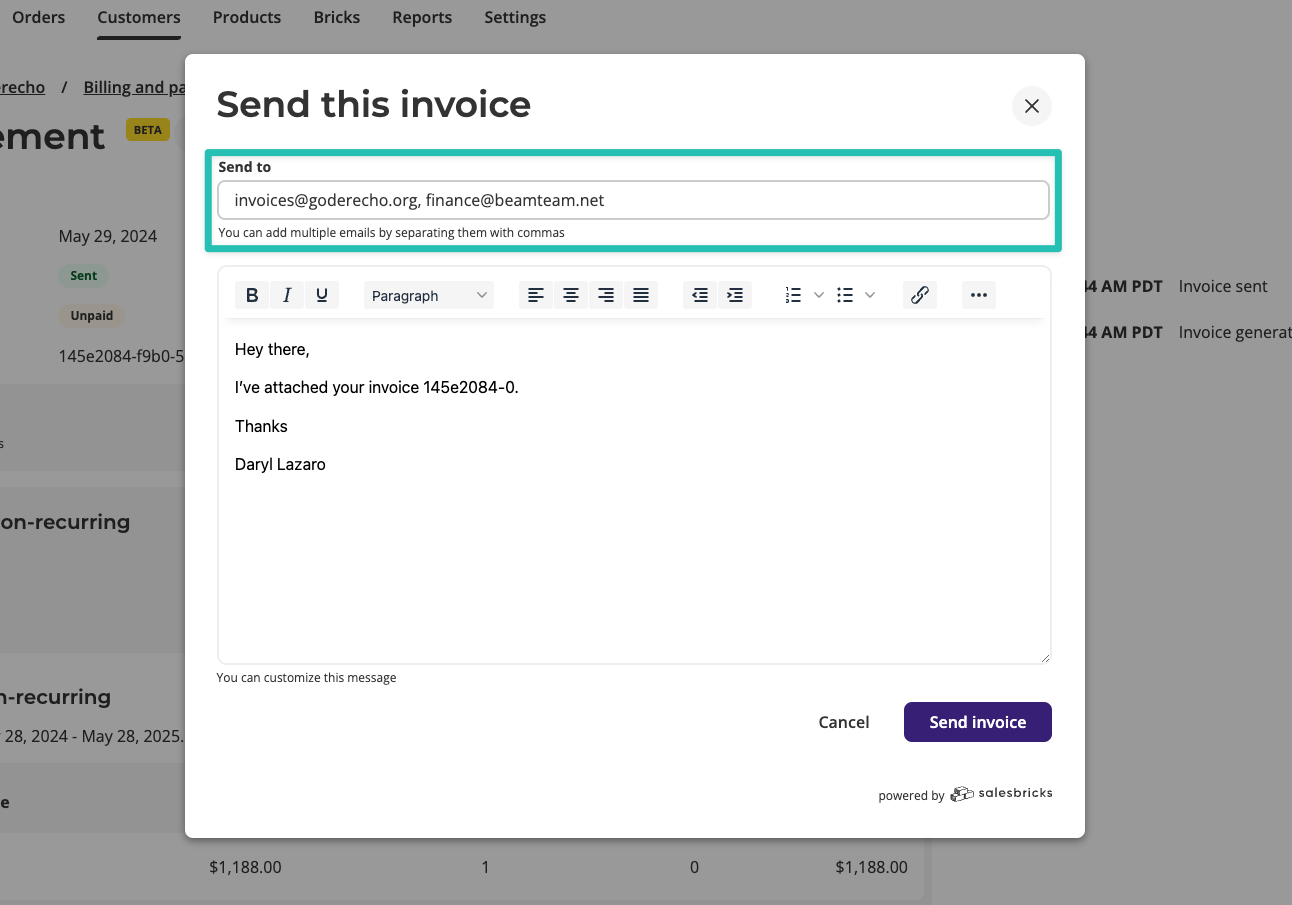
You can add multiple emails by separating them with commas. Click Send invoice.
Option 2: Download the invoice & send via email
Go to the Customers page to find your customer.
Click the Billing and Payments tab.
Select the invoice you wish to send.
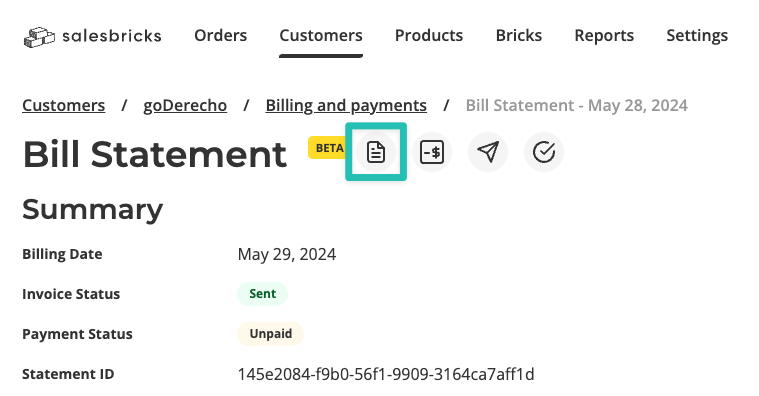
Click the file icon to view and download the invoice PDF.
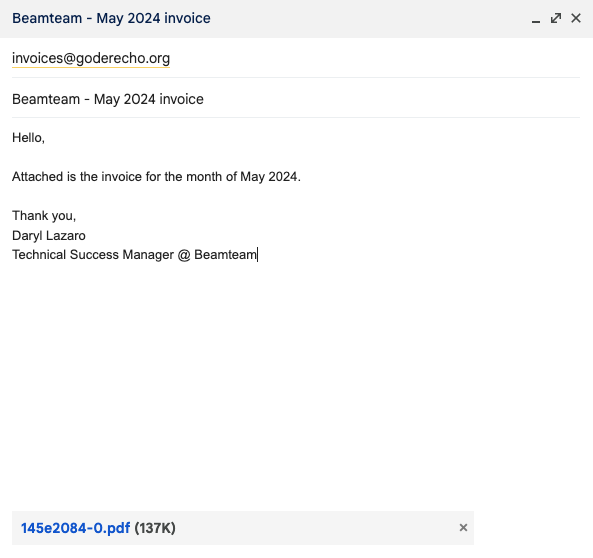
Attach the invoice to an email and send.
Option 3: Send the customer the link to their paywall
Click into the desired invoice by following the steps above.
Navigate to the
Pay invoicebutton near the bottom, right click and copy the link.
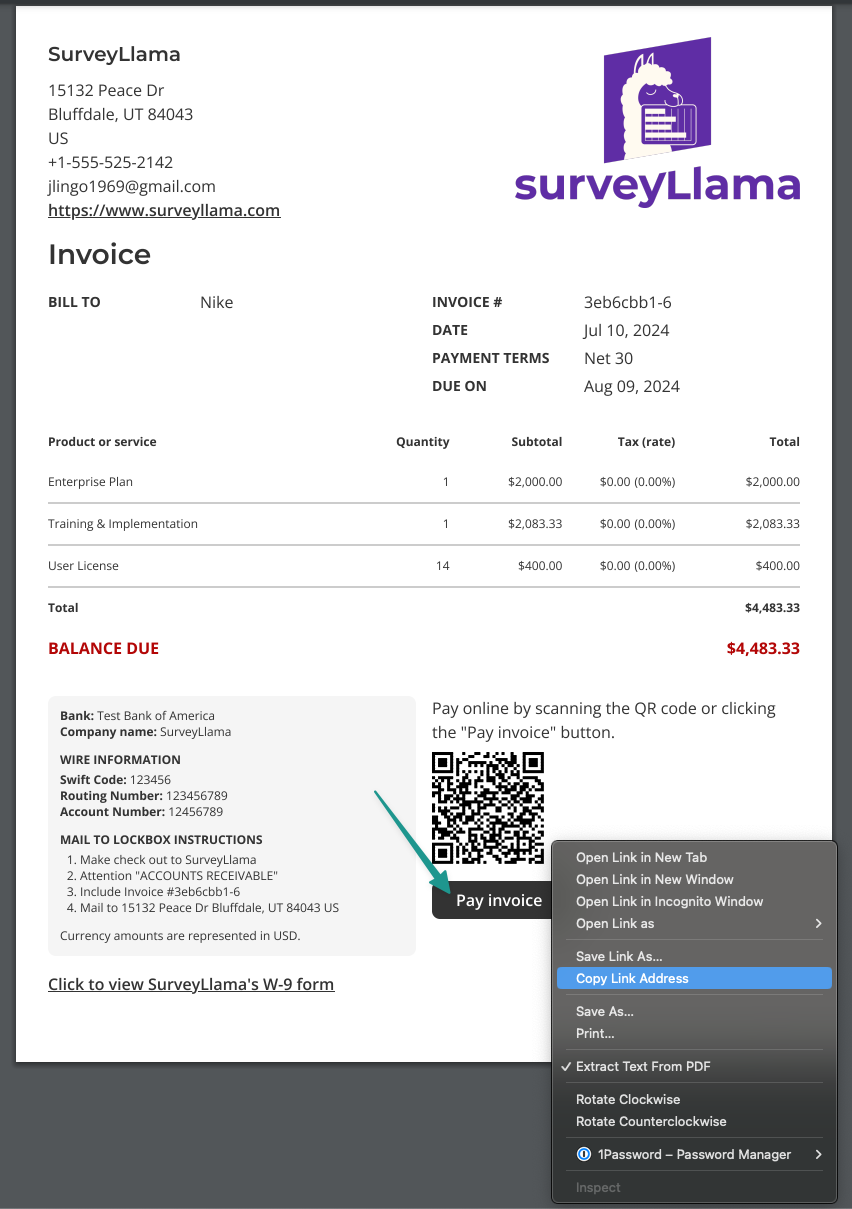
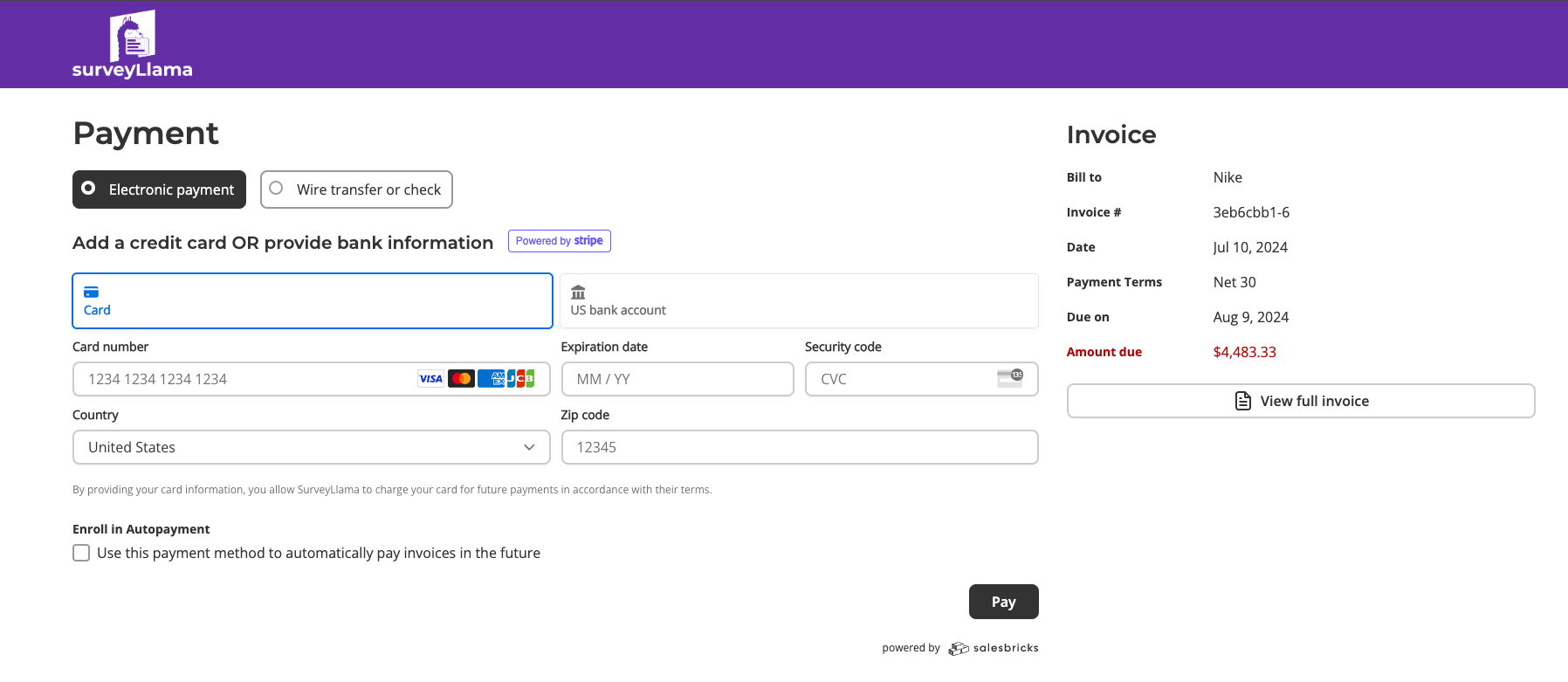
You can send this link to your customer and they will land on your paywall where they can view the invoice, manage their payment methods, and pay.