How do I create a recast order?
Last updated: April 20, 2026
Go to the Customers page, search for the desired customer, and click the table row to view their account.
Click on the Update subscription icon on the subscription card.
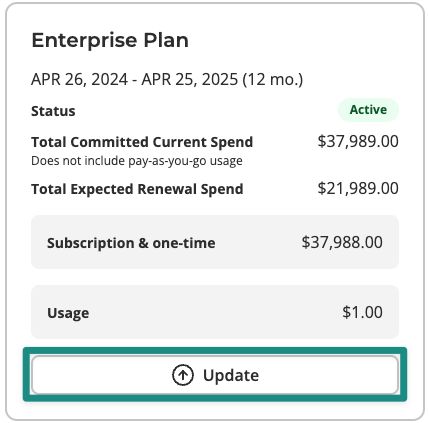
If an update order was already created, you will not be able to create a new upgrade order until the current order is deleted.
If the subscription was terminated, you will not be able to create a new upgrade order until the subscription is reinstated.
Select the Recast option from the menu.
Complete the fields and selections in the order builder.
Click Update recast to save.
Alternatively, you can create a recast from within the Orders tab:
Click New order
Search for the customer and select them
Select Existing subscription
Find the subscription you want to update, and select Recast
For additional information regarding recast orders, including example scenarios, see Managing Your Customer.