How can I migrate an order to Salesbricks?
Last updated: January 28, 2025
Follow the steps below to migrate an order executed outside of Salesbricks into the platform.
Navigate to the Orders tab and click the + New order button
Select a Migrating customer and click Next
Fill out the order details matching those on the executed agreement including the start date, contract period, and plans and add-ons with their associated pricing and discounts
If redlined or specific terms were used for this deal you can upload the deal-specific terms under Terms and Conditions. Mark whether the order is intended to be an automatic or mutual renewal.
If custom terms are not used Salesbricks will crystalize your standard terms within the agreement.
Click Create.
If you have established a connection to Quickbooks and already have a Quickbooks customer created and want to avoid a duplicate customer from being created in Quickbooks, follow these steps:
Click the edit icon on the order.
You should see a section for Finance System Customer. Select your customer from the dropdown list and Update the order.
Click on the Manually close order icon (paper with a check)
Upload the signed agreement and complete the company, point of contact, and accounts payable details.
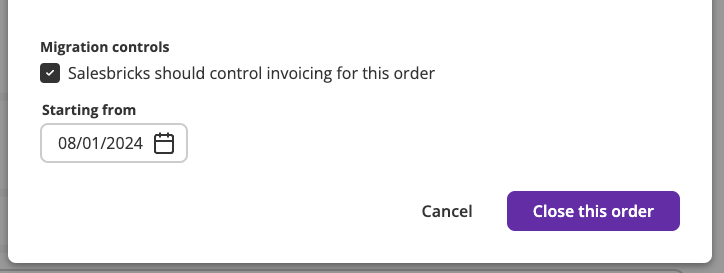
If Salesbricks should control invoicing for the order, check the box under Migration controls.
If you set a date in this section, Salesbricks will mute all invoices and customer notifications prior to that date (i.e., invoice and late invoice notifications). After the date, Salesbricks will send invoices to the contacts listed.
If you are migrating a customer from a Stripe subscription and want to use the customer's Stripe payment token so they do not have to input their payment information again, contact Salesbricks Support for assistance through Slack or email at support@salesbricks.com.