How to Create an Order with a Deposit Invoice Credit
Last updated: September 17, 2026
Overview
When a customer has already paid a one-off invoice (for example, a deposit or upfront payment) you can now convert that invoice into a new subscription order and automatically apply the invoice amount as a credit toward the order total. This eliminates manual credit adjustments and keeps your billing records clean from day one.
Contact Salesbricks Support if you do not see this option in your account.
---
How It Works
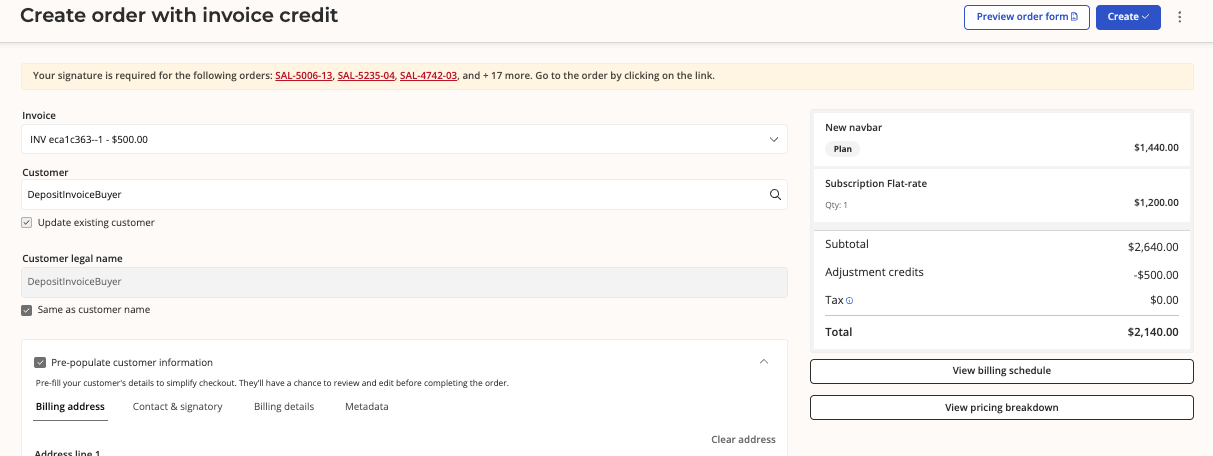
When creating a new order, you can select New subscription with invoice credit as the order type. Salesbricks will pull in the eligible one-off invoice for that customer and apply its full value as an adjustment credit against the order subtotal. The remaining balance reflects what the customer owes going forward.
Example: A customer paid a $500.00 deposit invoice. You create a new subscription order with a $1,440.00 plan. Salesbricks applies a −$500.00 adjustment credit, resulting in a net order total of $940.00 due (plus any flat-rate or other line items).
---
Requirements
The feature must be enabled on your account. Reach out to your Salesbricks account team to request access.
The customer must have at least one eligible paid one-off invoice to apply as a deposit credit.
---
How to Create an Order with a Deposit Invoice Credit
Navigate to the customer account for whom you want to create the order.
Click Create order. The Create order dialog will appear.
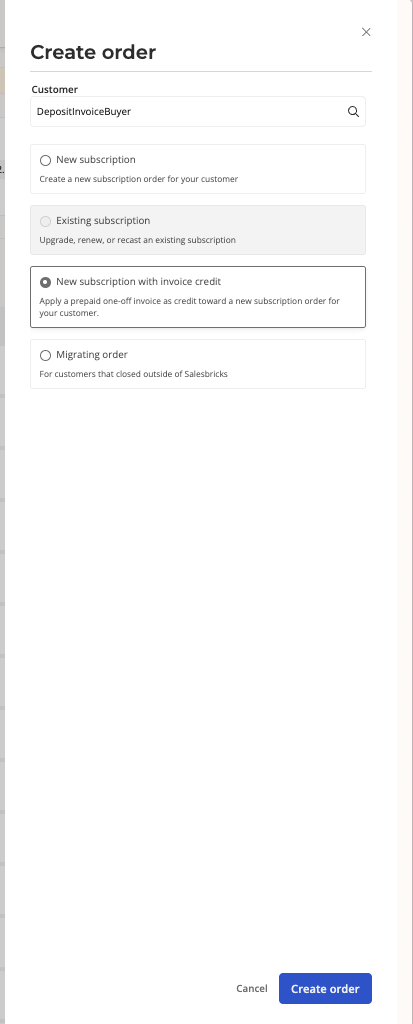
In the Create order dialog, select New subscription with invoice credit as the order type.
This option will appear only when the the customer has an eligible invoice.
Click Create order to proceed to the order configuration form.
On the order form, confirm the invoice details shown in the Invoice credit section. Salesbricks will display the invoice number and amount (for example, INV ecal363-1 — $500.00) that will be applied as a credit.
Configure the remaining order details — plan, billing terms, pricing, and any other line items — as you would for a standard new subscription.
Review the Order summary panel on the right side of the screen. You will see:
Plan — the full list price of the subscription
Subscription Flat-rate — any flat-rate charges
Adjustment credits — the deposit invoice amount shown as a negative credit (e.g., −$500.00)
Total — the net amount the customer owes after the credit is applied
When everything looks correct, submit the order to finalize the subscription and apply the deposit credit.
---
Frequently Asked Questions
Can I apply a partial deposit credit?
At this time, the full invoice amount is applied as the adjustment credit. Partial credit application is not currently supported.
What happens to the original invoice?
The one-off invoice is linked to the new order and its value is reflected as an adjustment credit in the order summary. Your invoice history remains intact.
What if I don't see the "New subscription with invoice credit" option?
If you do not see it, contact Salesbricks Support to confirm whether this feature is enabled for your account.
Can I use this flow for an existing subscription instead of a new one?
No. The deposit invoice credit flow is designed specifically for creating a new subscription. For existing subscriptions, use the standard Existing subscription order type and apply credits separately.